Fee types and price tiers: fixed, percentage, combined, and tiered pricing
This is the reference for how much TackOn charges and why. By the end you'll be able to read any charge rule and predict the exact amount a shopper will see, explain the difference between a per-item fee and a cart-wide fee, and build a set of price tiers that doesn't leave gaps. Most "the fee is wrong" problems come down to one of the three things covered here: the wrong Type, the Apply fee to entire cart (once) checkbox, or a hole between two price tiers.
Who this is for
- Anyone working out why a fee came to the amount it did
- Merchants setting up their first pricing structure, or moving from a flat fee to tiers
Time needed
- 10 minutes to read; about 2 minutes per rule to build
You'll need
- Access to the Shopify admin for the store, with TackOn installed
- A decision on what the fee represents (protection, wrapping, handling, duties, surcharge), because the fee type follows from that
1. Where fee amounts are set
Every amount TackOn charges comes from a charge rule. Go to Apps → TackOn → Settings → Rules. The + Create Rule button opens an inline panel titled Create Charge Rule directly above the rules table.
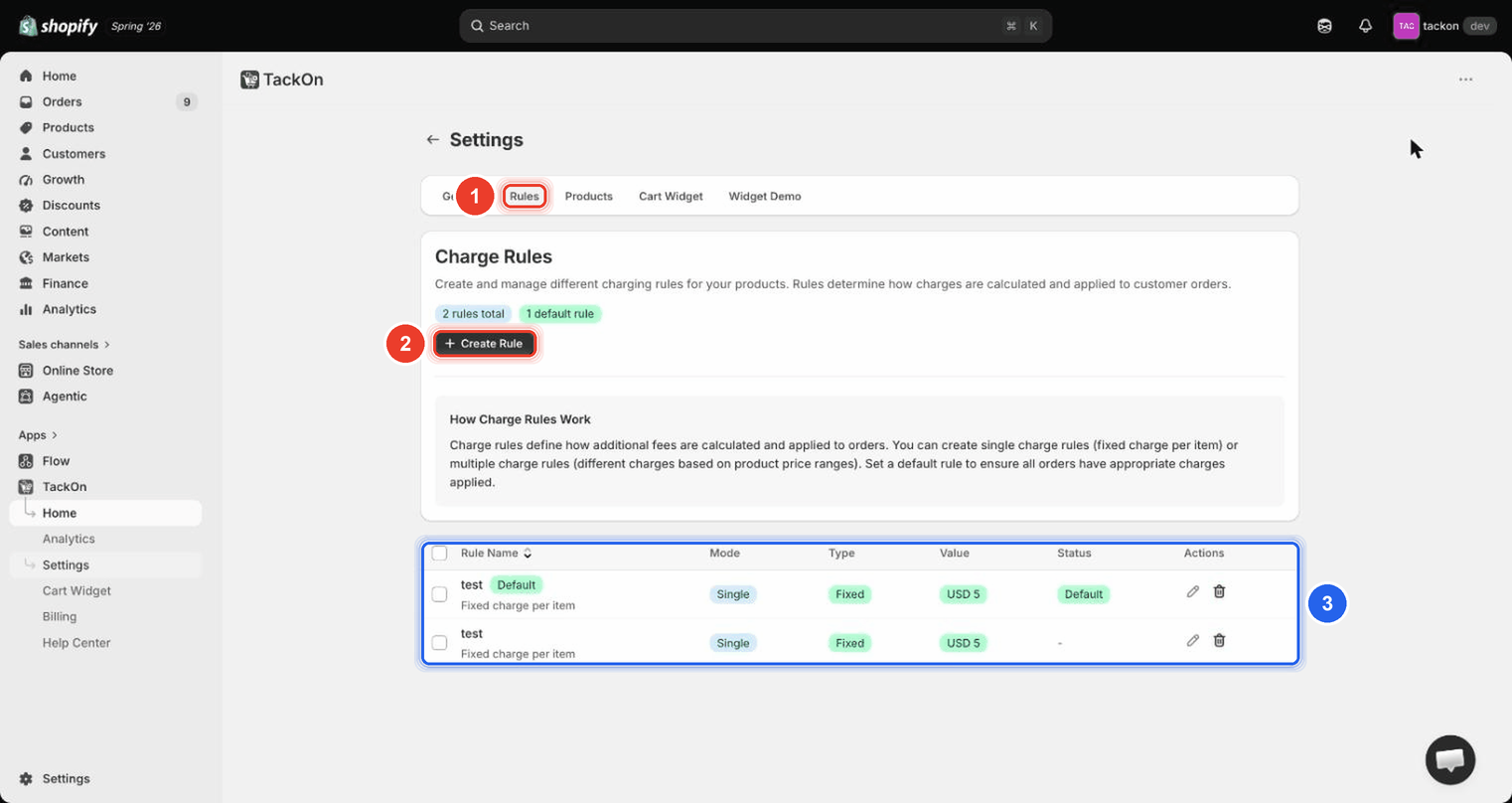
Marker 1 is the Rules tab; marker 2 is + Create Rule, which opens the form; marker 3 is the rules table where saved rules land, with columns Rule Name, Mode, Type, Value, Status and Actions. Note that the table abbreviates the type badge to Fixed even though the form calls it Fixed Amount. Same thing.
The counters above the button (2 rules total, 1 default rule) are a fast way to see what you actually have before debugging an amount.
2. The three fee types
The Type select offers exactly three options.
| Type (on screen) | What it charges | Value means |
|---|---|---|
| Fixed Amount | A flat money amount | An amount in the store currency |
| Percentage | A share of the price | A percent |
| Combined (% + Fixed) | A percentage plus a flat amount | Both components of the fee |
⚠️ Heads up: if you can't find "Combined" in the Type list, look for the option ending in
(% + Fixed). That's the full on-screen label.
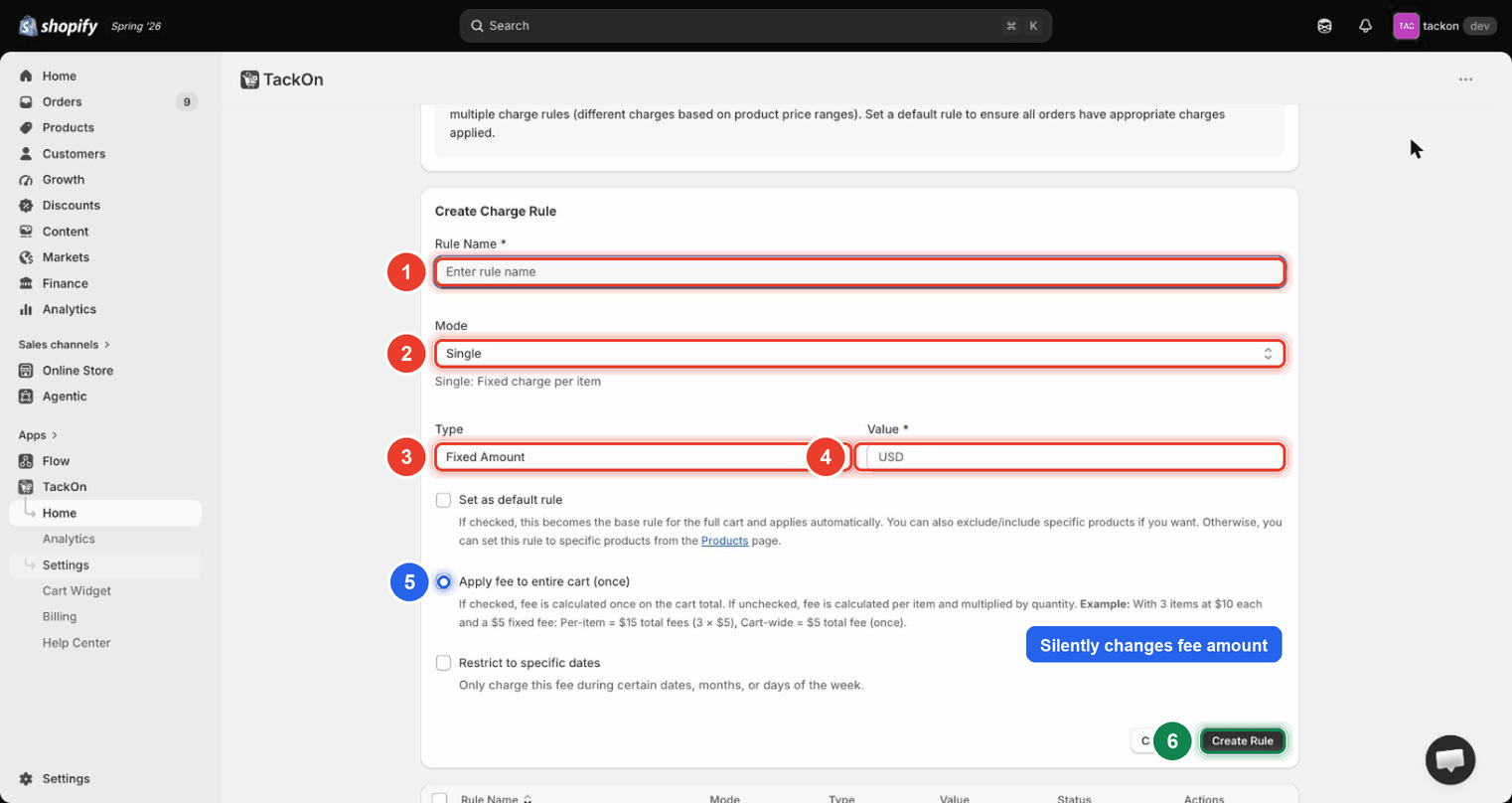
*Markers 1–4 are the four fields that decide the amount: Rule Name, Mode, Type and Value. Marker 5 is Apply fee to entire cart (once). The callout "Silently changes fee amount" is there because this one checkbox can triple or third the charge. Marker 6 is Create Rule, next to Cancel.*
Fixed Amount: worked example
A gift-wrap fee of $4.95.
- Type = Fixed Amount, Value =
4.95 - Cart: 2 items at $30.00 each
- Per item: $4.95 × 2 = $9.90
- Cart-wide: $4.95, once
The Value field shows the store currency (USD) as its placeholder. Enter the number on its own.
Percentage: worked example
Shipping protection at 12%.
- Type = Percentage, Value =
12 - Item price $85.00
- 85.00 × 0.12 = $10.20
Because a percentage of each line adds up to the same total as a percentage of the whole cart, per-item and cart-wide land on the same number for a straight percentage rule. The per-item / cart-wide choice only visibly changes the total when there's a flat component, which is why Fixed Amount and Combined (% + Fixed) are where merchants get surprised.
Combined (% + Fixed): worked example
A payment-processing surcharge that mirrors typical processor pricing: 2.9% + $0.30.
- Type = Combined (% + Fixed), with a 2.9% component and a $0.30 flat component
- Cart total $120.00
- Percentage part: 120.00 × 0.029 = $3.48
- Fixed part: $0.30
- Total fee: $3.78
Applied per item across 3 lines instead, the $0.30 is collected on each line, so the flat part becomes $0.90 and the total moves to $4.38. Same rule, different checkbox.
3. Per-item or cart-wide: the checkbox that changes the money
Apply fee to entire cart (once) is the single highest-impact control on the form. Its own helper text spells the arithmetic out:
"If checked, fee is calculated once on the cart total. If unchecked, fee is calculated per item and multiplied by quantity. Example: With 3 items at $10 each and a $5 fixed fee: Per-item = $15 total fees (3 × $5), Cart-wide = $5 total fee (once)."
Unchecked is per item. Checked is once per cart.
⚠️ Heads up: this checkbox is the most common cause of "TackOn is charging three times what I set". Check it first whenever a fee comes out at the wrong amount.
Which to pick:
| Pick per item (leave unchecked) when… | Pick cart-wide (tick the box) when… |
|---|---|
| The cost scales with units: duties, per-unit handling, per-item wrapping | The cost is per order or per shipment: one handling fee, one protection policy |
| Each unit is individually packed or insured | The shopper would reasonably read the fee as "one charge for this order" |
| The fee is a percentage and you want it stated per line | You're charging a flat amount and a 6-item cart shouldn't pay 6× |
The checkbox is on the form in every mode (Single, Price ranges and Weight ranges), so tiered rules face the same decision.
4. Single vs Price ranges vs Weight ranges
Mode decides whether the rule charges one amount or picks an amount from a band.
| Mode | Helper text on screen | Use it for |
|---|---|---|
| Single | "Single: Fixed charge per item" | One fee for everything the rule applies to |
| Price ranges | "Price ranges: Different charges based on product price ranges" | Fees that scale in steps with price |
| Weight ranges | "Weight ranges: Different charges based on product weight" | Fees that scale in steps with weight |
Switching Mode to Price ranges removes the single Type and Value pair and replaces them with a block called Price-based Charge Rules.
The rules list (the table on Settings → Rules) still labels both kinds of range rule Multiple in its Mode column. It's the same thing as Price ranges or Weight ranges in the form.
5. Building price tiers in Price ranges mode
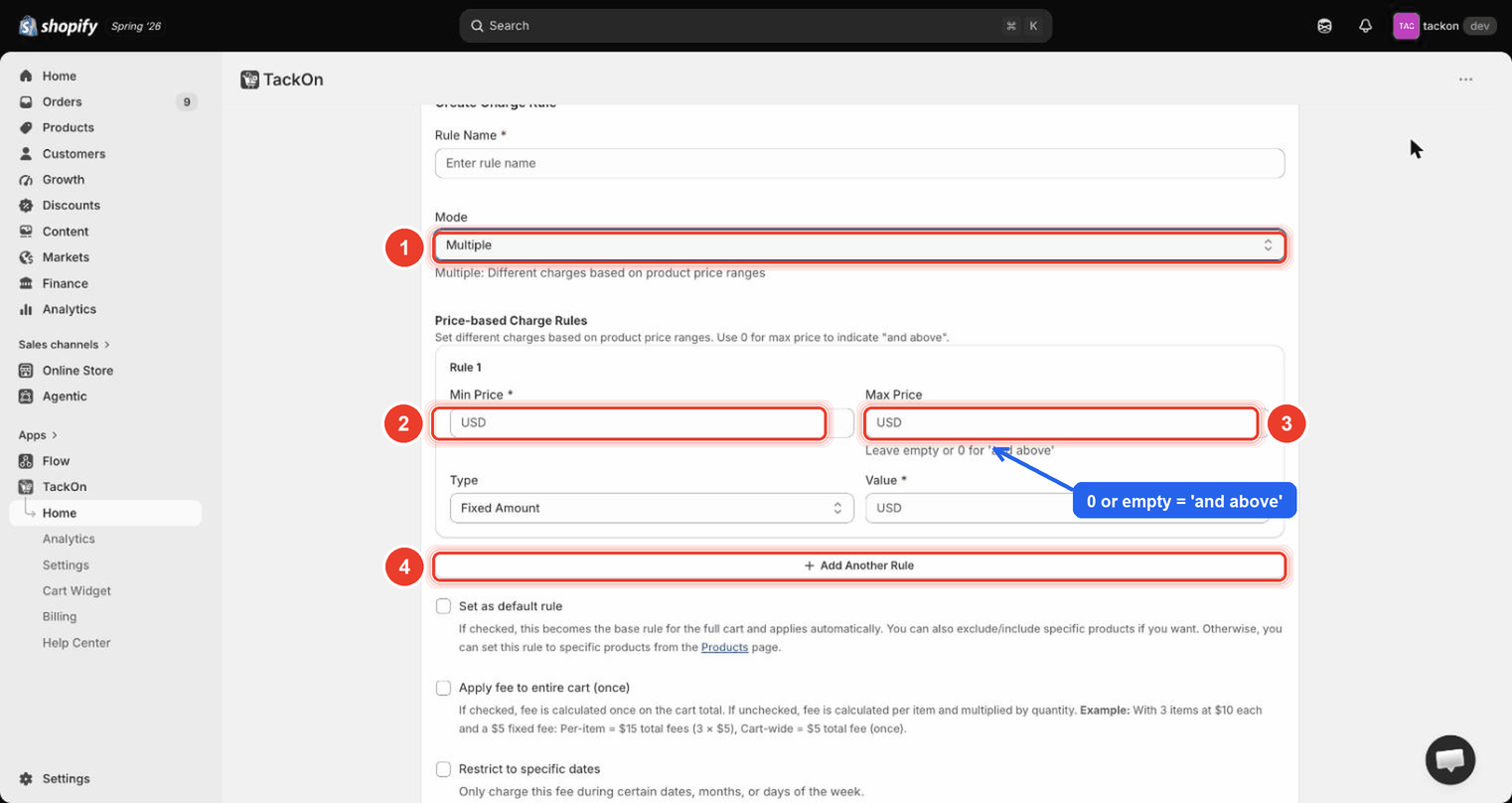
Marker 1 is Mode switched to Price ranges (the screenshot may still show the older name, Multiple). Markers 2 and 3 are Min Price and Max Price on the first tier card (headed Rule 1). Marker 4 is + Add Another Rule, which adds Rule 2, Rule 3 and so on. The blue callout points at the helper text under Max Price: "0 or empty = 'and above'".
Each tier card carries four fields: Min Price (required), Max Price, Type, and Value (required).
The "0 or empty = and above" convention
The section helper reads: "Set different charges based on product price ranges. Use 0 for max price to indicate 'and above'." The field helper under Max Price repeats it: "Leave empty or 0 for 'and above'."
So your top tier should have Max Price left blank or set to 0. That's how you say "no ceiling". If every tier has a real ceiling, anything priced above the highest one falls through and gets nothing.
Combined works per tier too
Inside a tier, Type offers Fixed Amount, Percentage, and Combined (% + Fixed), the same three as Single mode. Picking Combined (% + Fixed) swaps the single Value box for a Percentage field and a Fixed Amount field, exactly as it does in Single mode. So a tier can charge, say, 2.9% + $0.30 on its own price band.
⚠️ Heads up: combined tiers are supported directly. There's no need to approximate a percentage-plus-flat structure with percentage-only tiers. The option is on the tier card itself.
Design bands with no gaps
Tiers use inclusive bounds, so each Min Price should continue from the previous Max Price with no skipped values, and the last Max Price should be left empty.
This is broken, because $25.00 belongs to no tier:
| Tier | Min Price | Max Price |
|---|---|---|
| Rule 1 | 0 | 24.99 |
| Rule 2 | 25.01 | 99.99 |
The app now catches this. A Check your price tiers warning banner appears above the tier cards naming the uncovered range: "Rule 1 ($0 – $24.99) and Rule 2 ($25.01 – $99.99) leave $25.00 uncovered. Nothing is charged in that range." It also warns when two tiers both cover the same price, and when no tier is left unlimited so nothing is charged above the top band.
⚠️ Heads up: these are warnings, not blocks: the rule still saves. That's deliberate: a gap is the only way to express "charge nothing in this band" (a tier value of
0is rejected), and blocking would lock you out of editing rules you'd already saved with gaps. So the banner is advisory. If a fee "just doesn't apply" in one price range, open the rule and look for that banner.
A worked tier table
| Tier | Min Price | Max Price | Type | Value |
|---|---|---|---|---|
| Rule 1 | 0 | 24.99 | Fixed Amount | 2.00 |
| Rule 2 | 25 | 99.99 | Fixed Amount | 4.50 |
| Rule 3 | 100 | (empty) | Percentage | 5 |
Traces:
- $18.00 → above 0, at or under 24.99 → Rule 1 → flat $2.00
- $60.00 → in the 25–99.99 band → Rule 2 → flat $4.50
- $240.00 → above 100, no ceiling on Rule 3 → Rule 3 → 240.00 × 0.05 = $12.00
Two things worth knowing here. First, the on-screen wording is product price ranges: the band is matched on price, and then Apply fee to entire cart (once) decides whether the resulting fee is multiplied by quantity or charged once. Second, both boundary values are inclusive: a tier matches when the price is greater than or equal to Min Price and less than or equal to Max Price. A cart at exactly $25.00 therefore falls inside a tier starting at $25.00. That is also why two bands must never share a boundary value, or the same cart matches both.
What a tier matches on
Each tier is matched against the item's unit price, one item at a time. If you tick Apply fee to entire cart (once), the tiers are matched against the cart total instead.
Weight ranges mode
Set Mode to Weight ranges to charge by how heavy a product is. The tier cards look like the price ones, with these fields:
- Min Weight (required) and Max Weight. Leave Max Weight empty or
0for "and above". - Unit, with the help text "Saved as grams". Enter weights in whichever unit suits you. TackOn converts them to grams when you save, because grams is what a cart item reports.
- Type and Value, as in price tiers.
Bounds work the same way as price tiers, so leave no gaps and no overlaps. A Check your weight tiers warning banner appears above the tier cards when it spots a gap, or when no tier is left as "and above". Like the price banner, it's advice and doesn't block saving. Overlapping bands are different: the form shows an error and won't save until you fix them.
If some of your products have no weight set in Shopify, you'll see a Some products have no weight banner on the Rules page. Shopify reports those products as 0 g, so they fall into your lowest weight band, or are charged nothing at all. Set a weight on each variant in Shopify to fix it.
⚠️ Heads up: weight-based fees don't appear on the checkout widget (the Settings → Checkout tab). Shopify's checkout doesn't tell apps how much the cart weighs. The cart widget is not affected.
6. Which fee type should I use?
| Use case | Type | Per item or cart-wide | Why |
|---|---|---|---|
| Shipping protection | Percentage (or Price ranges tiers) | Cart-wide: tick Apply fee to entire cart (once) | Protection covers the order; the value scales with what's being protected |
| Gift wrap, one wrapped box | Fixed Amount | Cart-wide | One box, one fee |
| Gift wrap, each item wrapped | Fixed Amount | Per item: leave the box unticked | Cost scales with units wrapped |
| Payment processing surcharge | Combined (% + Fixed) | Cart-wide | Mirrors processor pricing (percentage + per-transaction flat) and there's one transaction |
| Handling / pick-and-pack | Fixed Amount, or Price ranges tiers for larger orders | Cart-wide for one shipment, per item for per-unit picking | Follow whatever the fulfilment cost actually tracks |
| Tariffs and duties | Percentage, or Price ranges tiers | Per item | Duty scales with goods value, so it should scale with quantity |
If you're adding a surcharge that defaults to opted-in, pair it with the confirmation popup covered in Designing the cart widget so shoppers acknowledge the charge before checkout.
Troubleshooting
| Symptom | Likely cause | Fix |
|---|---|---|
| Fee is 3× (or 5×, or 10×) what you set | Apply fee to entire cart (once) is unticked, so the fee multiplies by quantity | Edit the rule from the Actions pencil, tick Apply fee to entire cart (once), save |
| Fee looks far too small on a large cart | The opposite: the box is ticked and you wanted per-unit charging | Untick Apply fee to entire cart (once) |
| Can't find "Combined" in the Type list | The full label on screen is Combined (% + Fixed) | Look for the option ending in (% + Fixed) |
| Combined (% + Fixed) not applying on a tier | The tier's own Type is still Fixed Amount or Percentage | Set Type on the tier card itself. Each tier carries its own type, and all three are available per tier |
| Some carts get no fee at all, others are fine | A gap between tiers, or the top tier has a real Max Price instead of empty/0 |
Make the bands continuous and clear the last Max Price |
| Nothing above a certain price is charged | Top tier's Max Price is set to a number | Set it to 0 or leave it empty for "and above" |
| Percentage rule charges a wild amount | The number in Value was entered as a decimal share (0.12) instead of a percent (12) |
Re-enter the percent, then confirm the Value column in the rules table |
| Rule saves but never fires on a specific product | Default vs non-default rules behave differently for product binding | See Product-specific fees |
| Rule is correct but the widget never appears | Schedule or visibility rules are filtering it out | See Scheduling, visibility rules, and troubleshooting |
After any edit, check the rules table: the Mode, Type and Value columns show exactly what was saved, and default rules carry a green Default badge in Status.