Scheduling, visibility rules, and troubleshooting
Most widget problems aren't "the fee is broken". They're "the fee showed up when it shouldn't have" or "the widget isn't there at all". This guide covers the two controls that decide when the widget appears (date scheduling on a charge rule, and Visibility Control Rules), the Theme Selectors that decide where it appears, and a symptom-by-symptom playbook you can work through in order.
Who this is for
- Anyone diagnosing a widget that isn't behaving
- Merchants running seasonal, weekend, or conditional fees
Time needed
- 10 minutes to set up a schedule or a visibility rule
- 5-15 minutes to work a troubleshooting case end to end
You'll need
- The TackOn app in the Shopify admin (Apps → TackOn)
- At least one charge rule (see Getting started: install TackOn and charge your first fee)
- A storefront tab on the cart page, for testing
1. Schedule a fee to specific dates
Scheduling lives on the charge rule itself, not on the widget. Go to Settings → Rules → + Create Rule (or click the pencil in the Actions column to edit an existing rule) and tick Restrict to specific dates. Its helper text reads "Only charge this fee during certain dates, months, or days of the week."
Ticking the box reveals a Schedule type select, and what you pick there decides which date fields appear underneath.
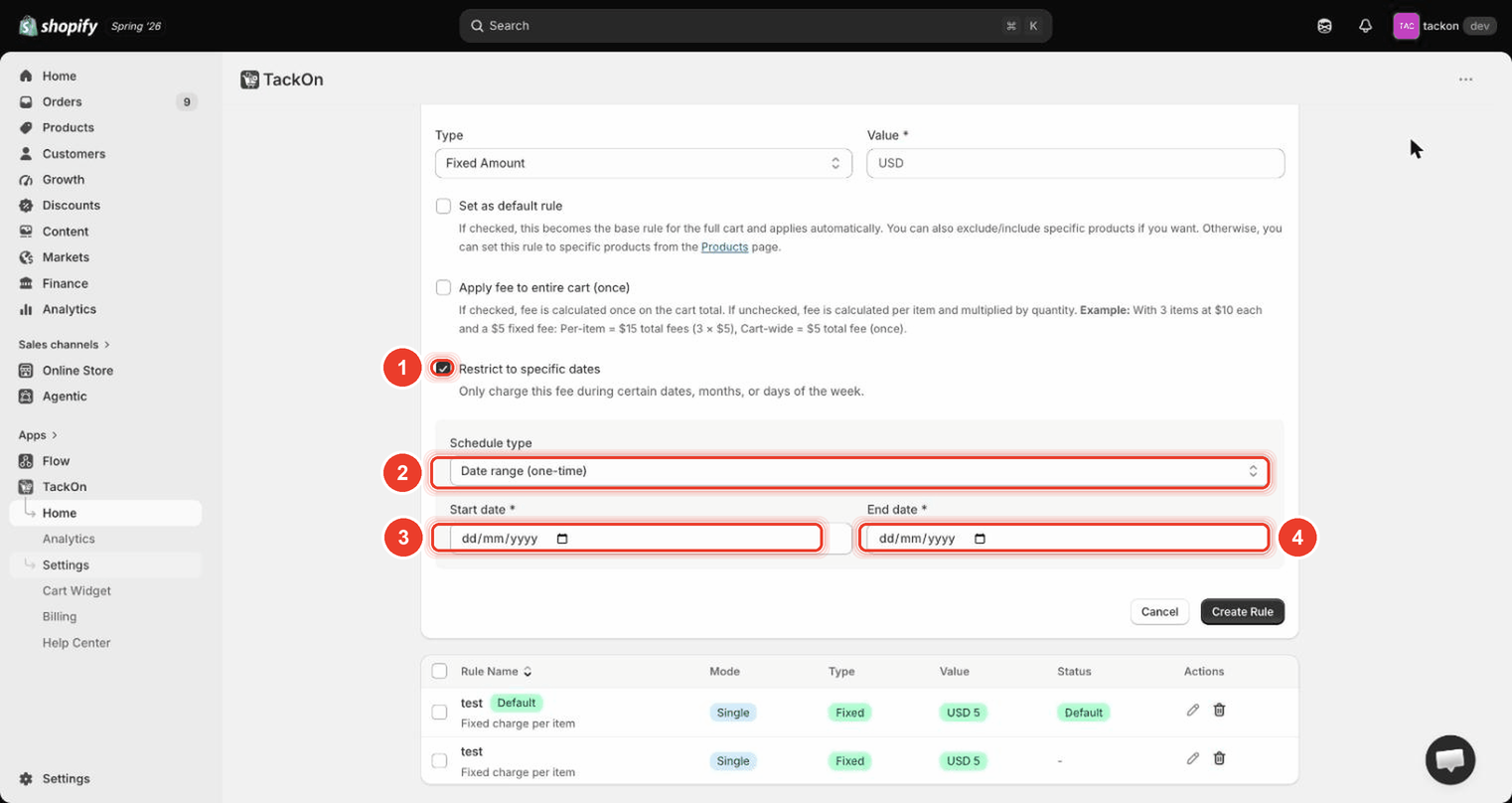
Marker 1 is the Restrict to specific dates checkbox. Nothing below it exists until it's ticked. Marker 2 is Schedule type. Markers 3 and 4 are the Start date and End date inputs this schedule type reveals; another type puts different fields here.
The four schedule types
| Schedule type option | Fields it reveals | Use it for |
|---|---|---|
Date range (one-time) |
Start date and End date (native dd/mm/yyyy date inputs) |
A one-off window that never repeats |
Recurring yearly range (e.g. every Dec – Jan) |
Start month, Start day, End month, End day | A window that repeats every year, including one that crosses New Year |
Specific months |
A month multi-select | A season, where the exact days don't matter |
Days of the week |
A weekday multi-select | A fee that only applies on certain days |
⚠️ Heads up: the checkbox is Restrict to specific dates. There is no "Enable date schedule" toggle or "Date Schedule" section on screen. If you're looking for one, that's the control you want.
Worked examples
| Goal | Schedule type | What to enter |
|---|---|---|
| Black Friday weekend only | Date range (one-time) |
Start date = the Friday, End date = the Monday. Once the window passes the rule goes quiet on its own |
| December–January holiday surcharge | Recurring yearly range (e.g. every Dec – Jan) |
Start month December, Start day 1, End month January, End day 5. Use this type whenever the window crosses the year boundary |
| Summer surcharge | Specific months |
June, July, August. Repeats every year, no day numbers to get wrong |
| Weekend handling fee | Days of the week |
Saturday and Sunday |
What happens when a schedule is inactive
Outside the window the widget hides entirely and no fee is added. The rule isn't deleted or disabled: it stays in the rules table and reactivates by itself when the window comes round again. A missing widget reads as a bug, so check the schedule before anything else.
Which clock does it use?
Schedule evaluation uses the shopper's browser time, not store time and not server time. A shopper in a timezone ahead of you sees a Black Friday fee before you do; one behind you still sees it after you think it ended. Add a day of slack at each end of a tight window.
2. Visibility Control Rules
Scheduling answers "when". Visibility Control Rules answer "for which carts and which customers". Find them at Settings → General, under Visibility Control Rules: "Control when the widget is shown to customers based on cart, customer, and product conditions." The info banner sets the limit: "Configure up to 5 rules to control widget visibility."
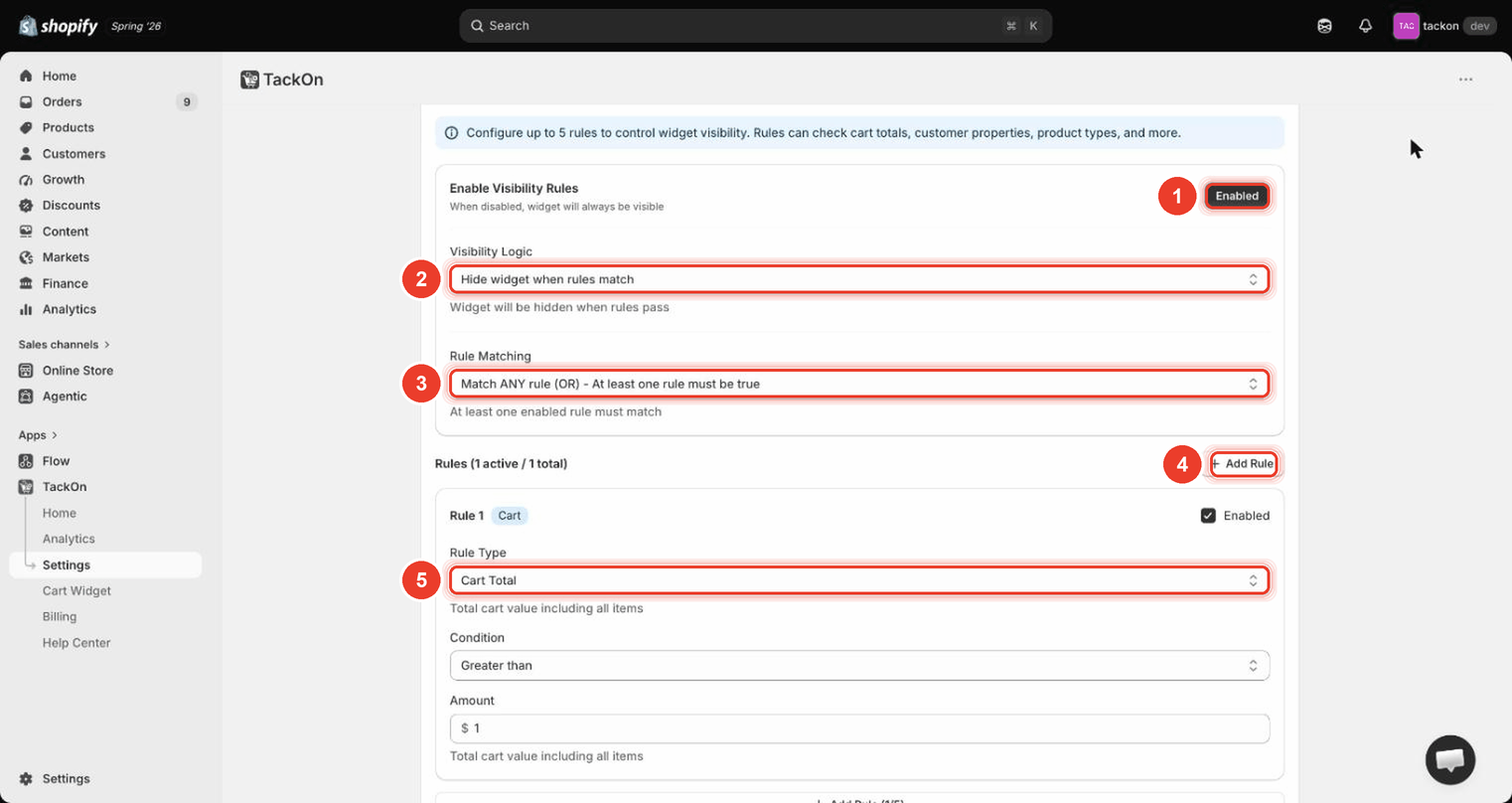
Marker 1 is the Enable Visibility Rules button, here reading Enabled. While it reads Disabled the widget is always visible and everything below is ignored. Markers 2 and 3 are Visibility Logic and Rule Matching, which change what every rule underneath means. Marker 4 is + Add Rule; marker 5 is Rule Type on the first rule card.
The three settings that frame everything
| Control | What it does |
|---|---|
| Enable Visibility Rules | Toggles between Disabled and Enabled. Helper: "When disabled, widget will always be visible" |
| Visibility Logic | Sets the direction. In the screenshot it reads Hide widget when rules match, helper "Widget will be hidden when rules pass" |
| Rule Matching | Match ANY rule (OR) - At least one rule must be true means one match is enough; Match ALL rules (AND) - Every rule must be true requires every enabled rule to match. Helper: "At least one enabled rule must match" |
Read the helper line under Visibility Logic before writing any rules. It says in plain words what a matching rule will do, and the same rules produce the opposite outcome under the other setting.
Each rule appears as a card headed Rule 1, Rule 2 and so on, with a category badge (for example Cart) and its own Enabled checkbox; the header counts them as Rules (N active / N total). Per rule you set Rule Type, Condition, and an Amount/value field whose shape follows the rule type.
Rule types by category
| Category | Rule types | Conditions offered |
|---|---|---|
| Cart | Cart Total, Cart Subtotal, Number of Items | Greater than, Less than, Equals, Not equals, Between |
| Cart | Total Discount | Greater than, Less than, Equals, Not equals |
| Customer | Customer Order Count, Customer Total Spent | Greater than, Less than, Equals, Not equals, Between |
| Customer | Customer Tags | Contains, Does not contain, Contains any, Contains all |
| Customer | Customer Type (Logged In / Guest / B2B Customer) |
Is, Is not |
| Customer | Customer Email Domain | Contains, Does not contain, Equals, Not equals |
| Cart Attributes | Cart Attribute | Exists, Does not exist, Equals, Not equals, Contains |
| Cart Attributes | Cart Note | Exists, Does not exist, Contains, Does not contain |
| Products | Product in Cart, Product Type in Cart, Product Tag in Cart, Product Vendor in Cart | Contains, Does not contain |
| Shipping | Requires Shipping (Yes / No) |
Is, Is not |
| Shipping | Cart Weight | Greater than, Less than, Equals, Not equals, Between |
The Condition list is filtered to what makes sense for the rule type, so a condition you expect may simply not be on offer. Product Type in Cart, for instance, only does Contains and Does not contain.
Three recipes
All three assume Visibility Logic = Hide widget when rules match. If you have the opposite direction selected, flip the condition.
| Goal | Rule Type | Condition | Value | Why it works |
|---|---|---|---|---|
| Hide below a cart minimum | Cart Total | Less than | 50 |
Carts under 50 match and get hidden; the rest keep the widget |
| Show only to guests | Customer Type | Is | Logged In |
Signed-in customers match and are hidden; guests don't match, so they still see it |
| Show only when a product type is present | Product Type in Cart | Does not contain | Electronics |
Carts without an Electronics item match and are hidden; carts with one fall through |
With two or more rules, Rule Matching decides the join: Match ANY rule (OR) hides on the first match, which suits a list of exclusions; Match ALL rules (AND) hides only when everything lines up, which suits narrowing to one situation.
⚠️ Heads up: the catalogue above is the complete list of visibility rule types and conditions.
3. Theme Selectors
TackOn is a theme app embed. It isn't placed in a slot: it finds the cart elements by CSS selector and injects itself above the checkout button. Theme Selectors, at the bottom of Settings → General, configures that lookup: "Configure how the app finds cart elements in your theme."
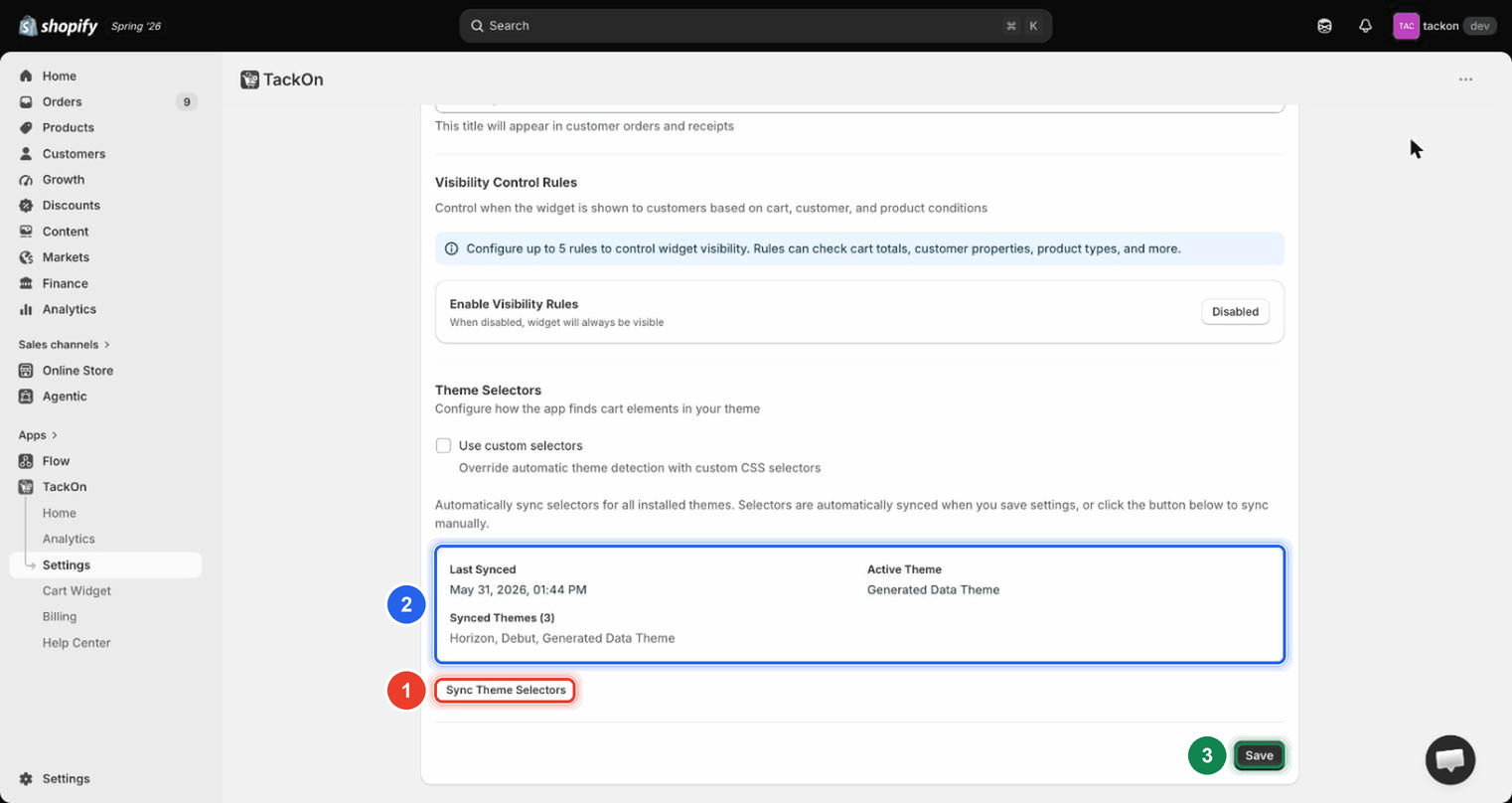
Marker 1 is Sync Theme Selectors, the manual re-detect. Marker 2 is the status card. Check Last Synced, Active Theme and Synced Themes first when a widget goes missing after a theme change. Marker 3 is Save, which also runs a sync.
Two things to know:
- Selectors sync automatically when you save settings. The on-screen note reads "Automatically sync selectors for all installed themes. Selectors are automatically synced when you save settings, or click the button below to sync manually." Save is usually enough; Sync Theme Selectors is what you reach for after changing your theme without touching TackOn.
- Use custom selectors ("Override automatic theme detection with custom CSS selectors") is the escape hatch for a heavily customised theme where automatic detection can't find the cart. Leave it unticked unless detection has actually failed, because a hand-written selector stops tracking the theme as it changes.
⚠️ Heads up: if you think the app has no way to handle your custom cart markup, Theme Selectors is where to look.
4. Troubleshooting
Start at Analytics and read the Fee Orders and Revenue tiles. If fees are landing on some orders, the app is installed and working and you're chasing a conditional problem: schedule, visibility, or product binding. If the count is flat zero, suspect installation.
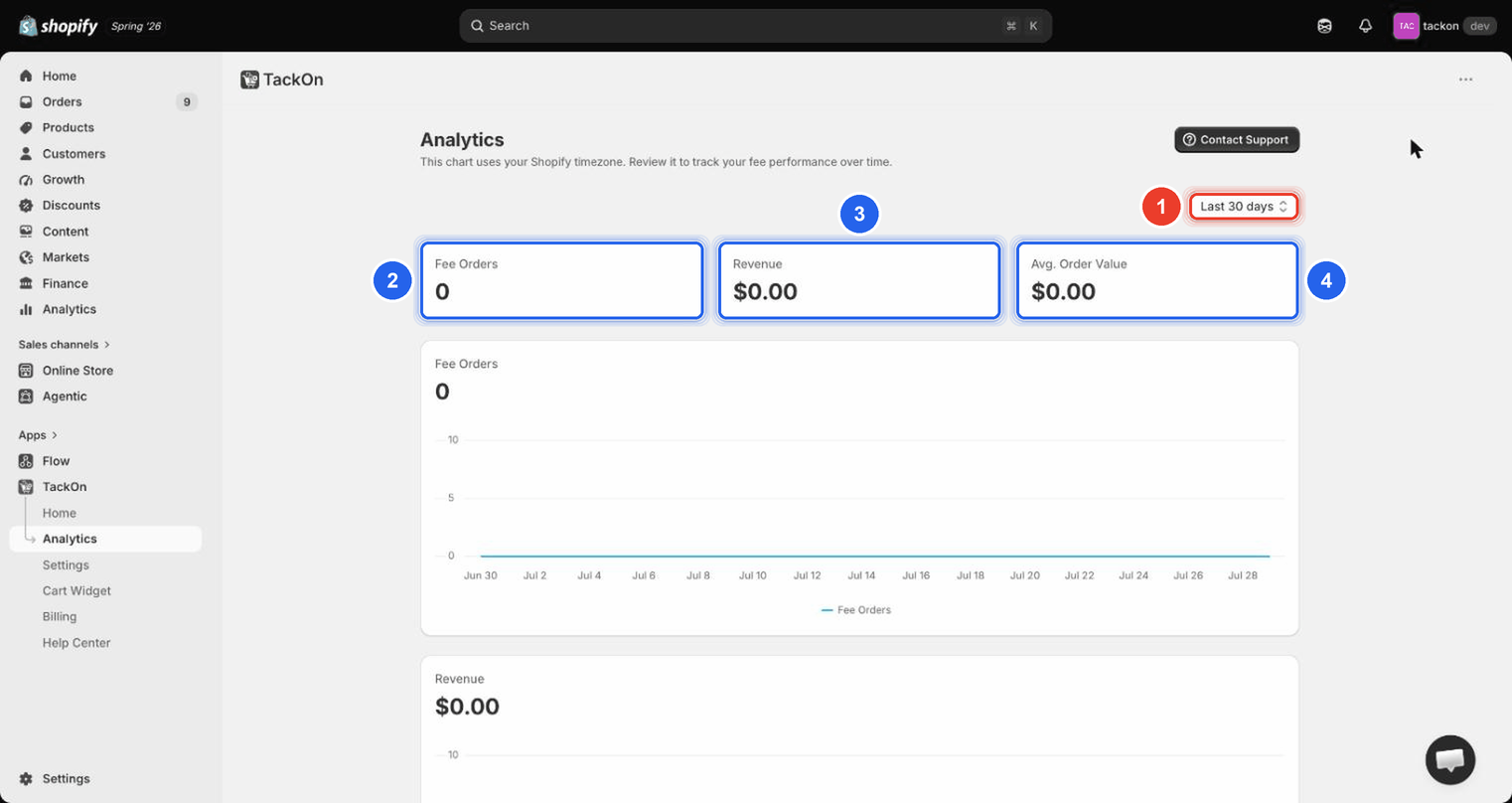
Notice the header note: this chart uses the Shopify timezone, while schedules run on the shopper's browser time. Don't treat a small mismatch at the edge of a scheduled window as a bug.
The widget doesn't appear
| Symptom | Likely cause | Fix |
|---|---|---|
| Widget missing everywhere on the storefront | The theme app embed was never turned on | Online Store → Themes → Edit theme, open the App embeds panel, toggle TackOn Cart Widget on, then Save |
| Looking for a TackOn block to add to the cart page | TackOn ships no block. It exists only as an app embed | Use the theme editor's App embeds panel (see above) |
| Widget missing, everything else looks configured | A visibility rule is hiding it | Settings → General → Visibility Control Rules: set Enable Visibility Rules to Disabled to confirm, then correct the rule |
| Widget missing today but was there last week | A date schedule has gone inactive | Edit the rule, check Restrict to specific dates and the Schedule type fields |
| Widget missing on the cart drawer, present on the cart page | The drawer's cart elements weren't picked up by the stored selectors | Click Sync Theme Selectors, then Save, then hard-reload the storefront |
| Widget appears twice | Use custom selectors is on and the selector matches more than one cart element | Untick Use custom selectors, Save, and let automatic detection run |
| Widget appears, but with the wrong type, style, colours, or copy | Changes on Settings → Cart Widget were never saved. The Live Preview redraws without saving, so they look applied | Reopen Settings → Cart Widget and click Save; the button reads Saved when nothing is pending |
The widget appears but the money is wrong
| Symptom | Likely cause | Fix |
|---|---|---|
| Widget shows, no fee at checkout | The customer never ticked the box: Default toggle state is Unchecked (opt-out by default) |
Expected behaviour. To default it on, change Default toggle state. TackOn switches Show confirmation popup at checkout on for you, and keeps it on while the box starts checked, so shoppers still consent explicitly |
| Widget shows, no fee, box was ticked | The hidden charge product isn't in place | Check the Charge product card on the TackOn Home screen. It should read Created |
| Fee is a multiple of what you expected | Apply fee to entire cart (once) is unticked, so the fee is per item × quantity | Edit the rule and tick Apply fee to entire cart (once) for a one-off cart charge |
| Fee is right on some products, wrong on others | A non-default rule is bound to those products and overrides the default | Settings → Products: review the bindings, see Product-specific fees |
| Fee is zero in a particular price band | Price tiers in Price ranges mode have a gap. The app warns but does not block, so it can be saved |
Open the rule; a Check your price tiers banner above the tier cards names the uncovered range. Edit the tiers so the ranges are contiguous, using 0 or an empty Max Price on the top tier for "and above" |
| No fee when a customer uses Buy it now or another dynamic checkout button (Shop Pay, PayPal and so on) on a product page | Those buttons skip the cart, so no app can add the fee there. TackOn can't cover this | If the fee must always apply, turn the buttons off in the theme editor: open the product page, select the Buy buttons block and untick Show dynamic checkout buttons |
| A draft order created in the Shopify admin has no fee | Draft orders don't run the storefront widget | Add the fee product to the draft order by hand |
Rules and schedules not firing
| Symptom | Likely cause | Fix |
|---|---|---|
| Schedule window has started but nothing changed | The shopper's browser clock hasn't reached the window yet | Confirm the tester's device time; widen the window by a day at each end |
| Recurring yearly range never activates | Start and end month/day entered in the wrong order for a window that crosses New Year | Re-enter as Start December / End January. That direction is supported by design |
| A visibility rule seems to be ignored | The rule card's Enabled checkbox is unticked, so it isn't counted in Rules (N active / N total) | Tick Enabled on the rule card and save |
| A customer-based rule never matches | Customer Tags, Customer Order Count, Customer Total Spent and Customer Email Domain need a signed-in customer; guests have empty tags, zero orders, zero spend | Test while signed in, or pair the rule with Customer Type Is Guest |
| Adding a second rule made things worse | Rule Matching is on Match ANY rule (OR) - At least one rule must be true, so one match is enough |
Switch to Match ALL rules (AND) - Every rule must be true if both conditions must hold |
Styling problems
| Symptom | Likely cause | Fix |
|---|---|---|
| Widget looks unstyled or misplaced after a theme change | Stored selectors point at the old theme's markup | Sync Theme Selectors, Save, hard-reload |
| Custom template renders but the toggle does nothing | The template uses {{checkbox}}, which does not exist |
Replace it with {{checkboxProperties}} |
| Colours don't match the rest of the storefront | Widget colours are set independently of the theme | Settings → Cart Widget: see Designing the cart widget |
⚠️ Heads up:
{{checkbox}}is not a real template variable. The one that renders the working checkbox is{{checkboxProperties}}. Replace it wherever it appears. A template using{{checkbox}}produces a widget whose toggle does nothing at all.
5. Advanced: browser-console checks
These two reads settle most questions in about thirty seconds. Open your storefront cart page, open the browser console, and type each one.
window.TACKON_CONFIG holds the app's settings as synced to the theme, read from the shop metafield by the embed.
| What you see | What it means | Fix |
|---|---|---|
| An object with settings in it | The embed is on and configuration reached the theme | Nothing. Look elsewhere |
{} |
The embed is loading but no configuration is synced | Settings → General → Sync Theme Selectors, then Save |
undefined |
The app embed isn't enabled on this theme | Turn on TackOn Cart Widget under App embeds |
(window.NS is a legacy alias for the same object, which is why old snippets referencing it still work.)
window.TACKON_DATA holds the live data the visibility rules are evaluated against. Two keys: customer (tags, orders_count, total_spent, email, email_domain, has_account, accepts_marketing, first_name, last_name) and cart (the current cart).
This is the fastest way to prove why a visibility rule isn't matching. If has_account is false, tags is [] and orders_count is 0, the shopper is a guest and every customer-based rule reads as empty: a data problem, not a rule problem.