Making a Fee Required or On by Default
Two settings decide whether a fee starts ticked, or whether customers get a say at all. Both live in the Behavior card on Settings → Cart Widget: "Control how the toggle checkbox behaves for customers."
Two ways to make a fee less optional
| Checked by default | Toggle disabled | |
|---|---|---|
| What customers see | A ticked checkbox | No checkbox |
| Can they decline? | Yes, by unticking it | No |
| Use it for | Pre-ticking a fee. Shopify still asks that optional charges start unchecked | Charges a buyer has no real choice about |
When the fee is added is a setting. Add the charge to the cart (also in the Behavior card) defaults to
When the customer clicks Check out. For a required fee, chooseAs soon as it appliesinstead: the fee is then added as soon as the cart qualifies, so it stays on checkouts that skip the Check out button, such as express buttons inside the cart or a direct checkout link. Buttons on a product page that skip the cart entirely, such as Buy it now, are covered at the end of this page.
Option 1: Check the box by default
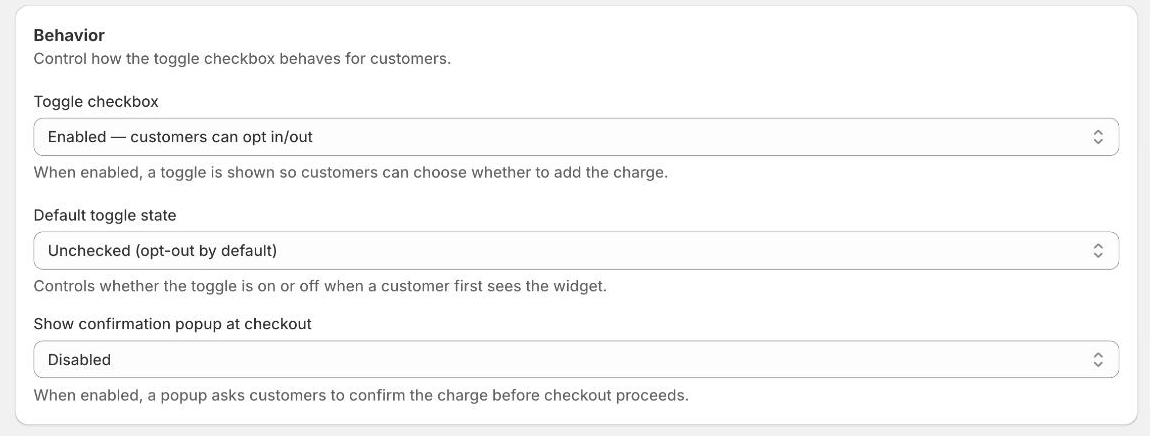 The Behavior card, shown at its defaults. Toggle checkbox decides whether customers get a choice at all; Default toggle state decides how that choice starts out.
- Go to Settings → Cart Widget
- Scroll to the Behavior card
- Leave Toggle checkbox on
Enabled — customers can opt in/out - Set Default toggle state to
Checked (opt-in by default) - Save
The widget now paints ticked the first time a customer sees it, using the Default Content title and description. The Dynamic Content opt-in copy is swapped in only when a customer ticks or unticks the box.
The confirmation popup switches on for you
Changing Default toggle state moves Show confirmation popup at checkout to
match: Checked (opt-in by default) turns it on, Unchecked (opt-out by default)
turns it off again. While the toggle starts checked, the popup is locked on. The
dropdown is greyed out, with the note "Always on while the toggle starts checked",
and it can't be saved off. To turn the popup off, set Default toggle state
back to Unchecked (opt-out by default).
The popup asks customers to confirm their selection, names the charge and the amount, and offers Cancel and Checkout. Cancel stops checkout and returns them to the cart with the box still ticked, so anyone who does not want the fee unticks it there and checks out again.
Option 2: Remove the checkbox entirely
Set Toggle checkbox to Disabled — widget is always active. The checkbox
disappears and there is no way to decline the fee. The price stays visible on the
widget. Also set Add the charge to the cart to As soon as it applies so the
fee is added as soon as the cart qualifies. With the default, When the customer clicks Check out, it is only added at the cart's checkout button.
The popup is cleared for you. A required fee has no checkbox, so there is nothing to confirm. Set Toggle checkbox to
Disabled — widget is always activeand click Save. TackOn always saves a required fee with the popup off, so you don't need to change it first.
Before you remove the choice
Shopify's guidelines
say optional charges must be off by default, with no exception for fees you consider
mandatory. Deciding that a charge is not optional, a legally required fee or a
deposit for example, is a call you need to be able to defend. For anything a
customer could reasonably refuse, keep Toggle checkbox enabled and Default
toggle state on Unchecked (opt-out by default): charges added without consent
can lead to App Store rejection and chargebacks.
What TackOn can't cover
- Buy it now and other dynamic checkout buttons on product pages. These skip the cart, so no app can add the fee there. If the fee must always apply, turn them off in the theme editor: open a product page, select the Buy buttons block and untick Show dynamic checkout buttons.
- Draft orders created in the Shopify admin. They don't run the storefront widget, so add the fee product to them by hand.
It still shows unchecked when you test it
TackOn remembers each customer's last choice in their browser, and that beats the store default. If you have ever ticked or unticked the widget in the browser you are testing in, it keeps its own state. Test in a private window, or clear your storefront's site data. For other widget symptoms, see Scheduling, Visibility & Troubleshooting.
Going deeper
For the behaviour settings in context, with the Dynamic Content opt-in and opt-out copy pairs and the full customiser walkthrough, see Designing the Cart Widget.